Unlock Productivity: Setting Up VR for Seamless Remote Work
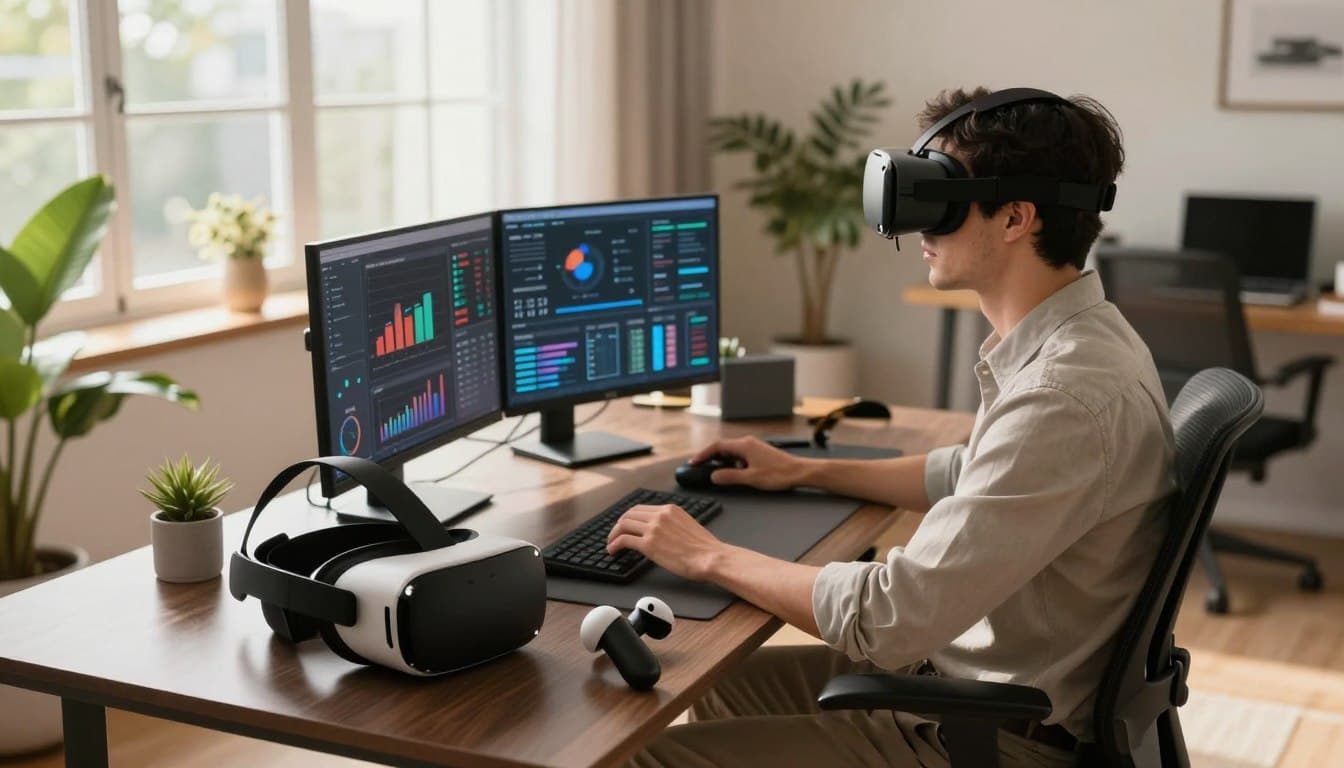
Imagine swapping your cramped laptop screen for a massive, infinite workspace that moves with you. Many professionals across the United States are now seeking fresh ways to stay sharp while working from home. Using VR for remote work offers an exciting new start for your daily professional routine.
Adding a virtual reality headset to your office setup can truly transform how you manage complex tasks. It helps you naturally block out home distractions and creates a real sense of presence with your coworkers. This tech is quickly becoming a must-have tool for boosting overall productivity.

Getting your setup ready is much simpler than most people expect. We will guide you through picking the right gear and arranging your physical space for the best results. Get ready to elevate your digital life and enjoy a more immersive way to get things done.
Key Takeaways
- Boost focus by using immersive digital environments.
- Expand your screen real estate without extra monitors.
- Increase collaboration through lifelike presence.
- Minimize physical distractions in your home office.
- Create a more ergonomic and adjustable workspace.
- Stay engaged during long meetings with interactive tools.
The Evolution of the Modern Home Office with Virtual Reality
The integration of Virtual Reality (VR) into home offices is revolutionizing the way we work. By providing immersive and interactive environments, VR is not only enhancing productivity but also transforming the concept of a workspace.
One of the significant advantages of VR in the home office is its ability to break free from the constraints of traditional monitor setups. With VR, users can create multiple virtual screens and workspaces, allowing for a more organized and efficient workflow.
Breaking Free from Traditional Monitor Constraints
Traditional monitor setups can be limiting, often leading to cluttered workspaces and decreased productivity. VR offers a solution by enabling users to create virtual monitors that can be placed anywhere in the virtual environment. This flexibility allows for a more customized and efficient workspace.
For instance, with VR, you can have multiple virtual screens open simultaneously, each dedicated to a different task or application. This multi-screen capability can significantly enhance multitasking and reduce the need to constantly switch between windows.
Psychological Benefits of Immersive Work Environments
Beyond the practical benefits, VR also offers psychological advantages. Immersive work environments can help reduce distractions and improve focus. By creating a dedicated virtual workspace, individuals can better separate their work and personal life, leading to improved work-life balance.
The immersive nature of VR can also have a positive impact on mental well-being. Studies have shown that immersive environments can reduce stress and improve mood. For remote workers, who often miss out on the social interactions of an office environment, VR can provide a sense of presence and connection.
By leveraging VR technology, individuals can create a work environment that is not only more productive but also more enjoyable and engaging. As VR continues to evolve, it's likely that we'll see even more innovative applications in the realm of remote work.
Selecting the Right Hardware for Your Professional Needs
To maximize the benefits of VR in a professional setting, it's vital to choose a headset that aligns with your specific requirements. The right VR hardware can significantly enhance productivity, collaboration, and overall work experience.
When evaluating VR headsets for professional use, several factors come into play, including resolution, comfort, tracking capabilities, and compatibility with existing workflows. Let's examine three prominent VR headsets: Meta Quest 3, Apple Vision Pro, and Bigscreen Beyond.
Evaluating the Meta Quest 3 for Daily Productivity
The Meta Quest 3 is a versatile VR headset that offers a balance between standalone functionality and PC-based VR capabilities. Its improved resolution and enhanced processing power make it suitable for daily productivity tasks.
Key Features:
- Higher resolution displays for clearer visuals
- Enhanced mixed reality capabilities
- Compatibility with PC-based VR applications
Assessing the Apple Vision Pro for High-End Spatial Computing
The Apple Vision Pro represents a cutting-edge solution for professionals requiring high-end spatial computing capabilities. Its advanced technology and seamless integration with other Apple devices make it an attractive option for those invested in the Apple ecosystem.
Key Features:
- Advanced spatial computing capabilities
- High-resolution displays with advanced optics
- Seamless integration with Apple devices and services
Considering the Bigscreen Beyond for Long-Term Comfort
The Bigscreen Beyond is designed with comfort in mind, making it an ideal choice for professionals who require extended VR sessions. Its lightweight design and advanced ergonomics contribute to a comfortable user experience.
Key Features:
- Lightweight and ergonomic design
- Interchangeable face masks for personalized comfort
- Advanced cooling system for prolonged use
To help you make an informed decision, here's a comparison of the key features of these VR headsets:
| Headset | Resolution | Comfort Features | Compatibility |
| Meta Quest 3 | Higher resolution displays | Ergonomic design | PC-based VR and standalone |
| Apple Vision Pro | High-resolution displays with advanced optics | Designed for comfort with Apple ecosystem | Seamless integration with Apple devices |
| Bigscreen Beyond | High-quality visuals | Lightweight, interchangeable face masks, advanced cooling | PC-based VR |
By carefully evaluating these options and considering your specific professional needs, you can select the VR headset that best enhances your productivity and workflow.
Optimizing Your Physical Workspace for Virtual Reality
The effectiveness of your VR setup depends significantly on the physical space around you. A well-optimized workspace not only enhances your VR experience but also ensures safety and comfort during extended use.
Adequate Room Scale and Safety Boundaries
When setting up your VR workspace, it's crucial to consider the room scale. VR systems like Meta Quest 3 allow you to define a virtual boundary, known as a "guardian system," to prevent accidents. Ensure you have enough space to move around comfortably without bumping into objects or people.
To set up your room scale effectively:
- Clear a large enough area to move around.
- Define your play area using your VR system's guardian system.
- Test your boundaries to ensure they are effective.
Managing Lighting Conditions for Optimal Tracking
Lighting in your workspace can significantly affect VR tracking performance. Most VR systems rely on cameras to track your movements, and optimal lighting conditions are crucial for accurate tracking.
To manage lighting effectively:
- Ensure the room is well-lit but avoid direct sunlight on the cameras.
- Minimize backlight, as it can interfere with tracking.
- Use uniform lighting to help the VR system track your movements accurately.
A comparison of different lighting conditions and their effects on VR tracking is shown below:
| Lighting Condition | Effect on VR Tracking |
| Low Light | Poor tracking performance |
| Uniform Lighting | Optimal tracking performance |
| Direct Sunlight on Cameras | Tracking issues due to glare |
Ergonomic Considerations for Extended Headset Use
Comfort during extended VR use is crucial for productivity. Ergonomic considerations can make a significant difference in your overall experience.
Key ergonomic factors to consider:
- The weight and balance of the headset.
- The comfort of the controllers and their ease of use.
- The ability to take breaks and rest your eyes.
By focusing on these aspects, you can create a VR workspace that is not only effective but also comfortable and safe for extended use.
Configuring Your Virtual Desktop Environment
The modern remote worker's toolkit is incomplete without a well-configured virtual desktop environment. As we dive into the specifics of setting up your virtual workspace, you'll discover how tools like Immersed, Meta Horizon Workrooms, and Virtual Desktop can revolutionize your productivity and collaboration.
Setting Up Immersed for Multi-Monitor Workflows
Immersed is a powerful tool that allows users to create multi-monitor workflows within a virtual environment. To set up Immersed, start by downloading and installing the application on your PC and VR headset. Once installed, you can configure the number of virtual monitors you need, depending on your workflow requirements. Immersed supports up to five virtual monitors, providing a flexible workspace that can be tailored to your specific needs.
Utilizing Meta Horizon Workrooms for Collaborative Meetings
Meta Horizon Workrooms is designed to enhance collaboration in virtual environments. To utilize Workrooms effectively, begin by setting up your account and ensuring your VR headset is compatible. Workrooms allows teams to interact in a shared virtual space, making it ideal for meetings and brainstorming sessions. You can invite colleagues to join your Workroom, where you can share whiteboards, presentations, and more.
Integrating Virtual Desktop for Seamless PC Connectivity
Virtual Desktop is another crucial tool for remote workers, enabling seamless connectivity between your PC and VR headset. To integrate Virtual Desktop, download the app on both your PC and VR headset. The application allows you to access your PC desktop directly from your VR headset, streamlining your workflow and reducing the need to switch between devices.
By configuring your virtual desktop environment with these tools, you can significantly enhance your productivity and collaboration capabilities, making remote work more efficient and effective.
Mastering Input Methods and Peripheral Integration
To maximize productivity in VR, mastering input methods and peripheral integration is crucial. Effective input methods can significantly enhance your VR experience, making it more intuitive and efficient.
The choice of input method can greatly impact your productivity in VR. Whether you're working with documents, collaborating with colleagues, or navigating complex virtual environments, the right input tools can make a substantial difference.
Pairing Bluetooth Keyboards and Mice with Your Headset
One of the most straightforward ways to enhance your VR productivity is by pairing Bluetooth keyboards and mice with your headset. This allows for more traditional typing and navigation experiences, which can be particularly useful for tasks that require extensive typing or precise cursor control.
- Ensure your headset is in pairing mode.
- Navigate to your device's Bluetooth settings and select your headset.
- Once paired, test your keyboard and mouse to ensure they're functioning correctly within VR.
Using Bluetooth keyboards and mice can significantly improve your productivity by allowing you to perform tasks more efficiently. For instance, typing documents or emails becomes much easier with a physical keyboard.
Leveraging Hand Tracking for Intuitive Navigation
Hand tracking is another innovative input method that allows for intuitive navigation within VR. By using cameras to track the movement of your hands, you can interact with virtual objects and interfaces without the need for controllers.
To leverage hand tracking effectively:
- Ensure your VR system is equipped with hand-tracking capabilities.
- Calibrate the hand-tracking feature according to the manufacturer's instructions.
- Practice using gestures to navigate and interact with virtual objects.
Hand tracking can be particularly useful for tasks that require a high degree of dexterity or for applications where controller-based input is not practical.
Using Physical Controllers for Specialized Professional Tasks
For certain professional tasks, physical controllers can provide the precision and control needed. These can range from specialized CAD design controllers to gaming controllers adapted for professional use.
When using physical controllers:
- Choose a controller that is designed for your specific task or industry.
- Ensure the controller is compatible with your VR system.
- Practice using the controller within VR to become familiar with its operation.
By mastering these input methods and integrating them effectively into your VR workflow, you can significantly enhance your productivity and efficiency in virtual environments.
Establishing a Productive Workflow in Virtual Reality
To maximize productivity in VR, it's essential to establish a workflow that minimizes distractions and maximizes focus. A well-designed VR workspace can significantly enhance your ability to concentrate on tasks.
Managing distractions is crucial in any work environment, and VR is no exception. One of the key benefits of VR is its ability to immerse you in a controlled environment, free from the distractions of the physical world.
Managing Focus and Minimizing Digital Distractions
To maintain focus, it's vital to minimize digital distractions within your VR environment. This can be achieved by:
- Limiting the number of virtual windows and applications open at any given time
- Using virtual desktop environments that allow for easy organization and minimization of unnecessary windows
- Implementing focus-enhancing tools and features within your VR software
As productivity expert, Laura Vanderkam, once said, "The key is not to prioritize what's on your schedule, but to schedule your priorities."
"The key is not to prioritize what's on your schedule, but to schedule your priorities."
Laura Vanderkam
Structuring Your Day with Virtual Pomodoro Timers
The Pomodoro Technique is a time management method that involves working in focused, 25-minute increments, followed by a 5-minute break. Implementing virtual Pomodoro timers in your VR workflow can help you stay on track and maintain productivity.
| Technique | Description | Benefits |
| Traditional Pomodoro | 25 minutes work + 5 minutes break | Improved focus, regular breaks |
| Virtual Pomodoro in VR | Customizable intervals with VR timer | Enhanced immersion, better time estimation |
Organizing Virtual Windows for Maximum Efficiency
Organizing your virtual windows effectively is crucial for maximizing efficiency in VR. This involves:
- Creating a logical layout for your most frequently used applications
- Utilizing virtual desktop features to categorize and manage multiple windows
- Leveraging spatial computing capabilities to arrange windows in 3D space

By implementing these strategies, you can create a VR workflow that not only enhances your productivity but also provides a more enjoyable and immersive work experience.
Overcoming Common Challenges in Virtual Workspaces
While VR offers numerous benefits for remote work, it also presents several challenges that users must navigate to ensure a productive experience. As we dive deeper into the world of virtual workspaces, it's essential to address these challenges head-on to maximize the potential of VR technology.
Mitigating Eye Strain and Digital Fatigue
One of the primary concerns with prolonged VR use is eye strain and digital fatigue. To mitigate this, users can follow the 20-20-20 rule: every 20 minutes, look away from the screen and focus on something 20 feet away for 20 seconds. Additionally, adjusting the headset's IPD (Interpupillary Distance) to match the user's eye spacing can significantly reduce strain.
Regular breaks and proper headset calibration are crucial. It's also worth exploring headsets with advanced eye-tracking technology and high-resolution displays, which can help reduce eye strain.
Troubleshooting Latency and Connection Issues
Latency and connection issues can severely impact the VR experience. Ensuring a stable and fast internet connection is paramount. Users should also check for any software updates for their VR equipment and related applications, as these updates often include performance enhancements and bug fixes.
| Issue | Cause | Solution |
| High Latency | Insufficient internet speed | Upgrade internet plan |
| Connection Drops | Interference from other devices | Reduce device interference |
| Poor Performance | Outdated software | Update VR software and drivers |
Balancing Virtual Immersion with Real-World Awareness
Maintaining a balance between virtual immersion and real-world awareness is crucial for safety and productivity. Users can achieve this by setting clear boundaries in their physical workspace and using features like passthrough or boundary systems provided by their VR headsets.
It's also beneficial to establish a routine that includes regular checks of the physical environment. This can be as simple as periodically removing the headset or using the headset's camera to glance at the surroundings.
Best Practices for Long-Term Success
To maximize the benefits of VR in your remote work setup, it's essential to adopt best practices that foster sustainability and efficiency. Implementing these practices not only enhances your productivity but also ensures that your VR experience remains optimal over time.
Developing a Sustainable Routine for VR Work
Creating a sustainable routine is crucial for long-term success with VR. This involves setting regular work hours, taking breaks to avoid fatigue, and establishing a dedicated workspace that is conducive to productivity.
To develop an effective routine, consider the following:
- Start with a consistent schedule that aligns with your most productive hours.
- Incorporate regular breaks to rest your eyes and stretch.
- Designate a specific area for your VR workspace to minimize distractions.
Maintaining Your Equipment for Longevity
Proper maintenance of VR equipment is vital for its longevity. This includes cleaning the headset regularly, updating software, and storing the equipment correctly when not in use.
Some key maintenance tips include:
- Clean the lenses and controllers with a soft, dry cloth.
- Update your VR software and firmware regularly to ensure you have the latest features and security patches.
- Store your equipment in a cool, dry place, away from direct sunlight.

Staying Updated with Software and Firmware Enhancements
Regular updates often bring new features, improvements, and bug fixes. Staying updated ensures that your VR experience remains optimal and secure.
To stay current:
- Enable automatic updates for your VR software and firmware.
- Regularly check for updates if automatic updates are not available.
- Read release notes to understand the changes and new features in each update.
Conclusion
As we've explored throughout this article, virtual reality is revolutionizing the way we approach remote work. By breaking free from traditional monitor constraints and leveraging immersive work environments, individuals can significantly boost their productivity.
By selecting the right hardware, optimizing physical workspaces, and configuring virtual desktop environments, professionals can create a seamless and efficient workflow. Mastering input methods and overcoming common challenges further enhances the VR experience.
As we conclude, it's clear that virtual reality for remote work is not just a novelty, but a powerful tool for enhancing productivity. By adopting VR solutions and following best practices for long-term success, individuals can unlock new levels of efficiency and collaboration.
This productivity conclusion underscores the potential of VR to transform the future of work, making it an exciting space to watch and participate in.